Caricamento / Loading
How to follow up using flows
2 min read
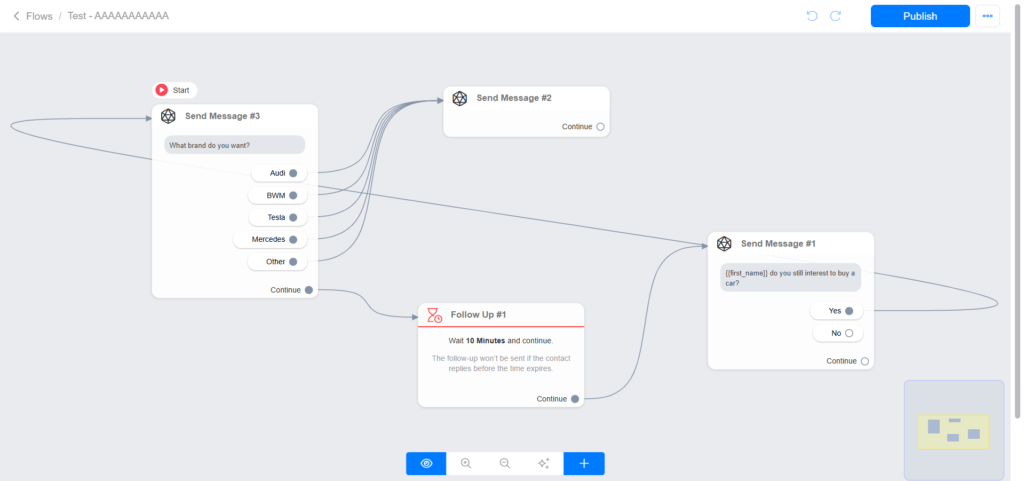
A follow-up lets your chatbot send a message or take action only if the user doesn’t reply within a certain time.
How it works
- If the user replies before the time is up → the follow-up is canceled
- If the user doesn’t reply → the follow-up is sent
How is it different from the WAIT steps
- Follow-up: Sent only if the user stays inactive
- WAIT step: Always runs after the delay, no matter what the user does
Common use cases
- Clean up inactive contacts
Automatically unsubscribe or delete a contact if they don’t respond to a message after a set time (e.g., 7 days).
2. Ask for feedback
Send a message asking users to rate their experience after they stop interacting (e.g., after 1 hour of inactivity).
3. Re-engage users
If someone leaves in the middle of a conversation, send a follow-up like:
“Are you still interested?”
Adding follow-up to your flow
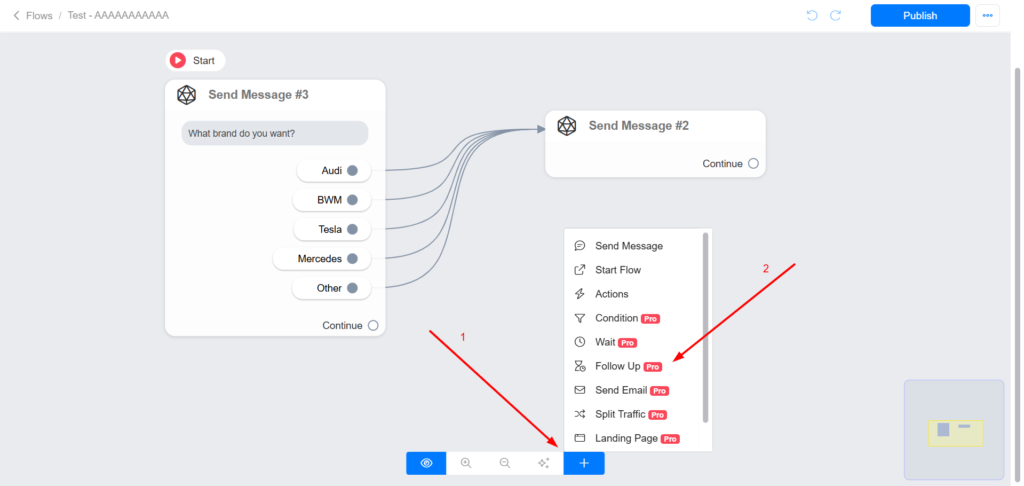
1 – Click on the + button at the bottom of the screen.
2 – Click Follow Up
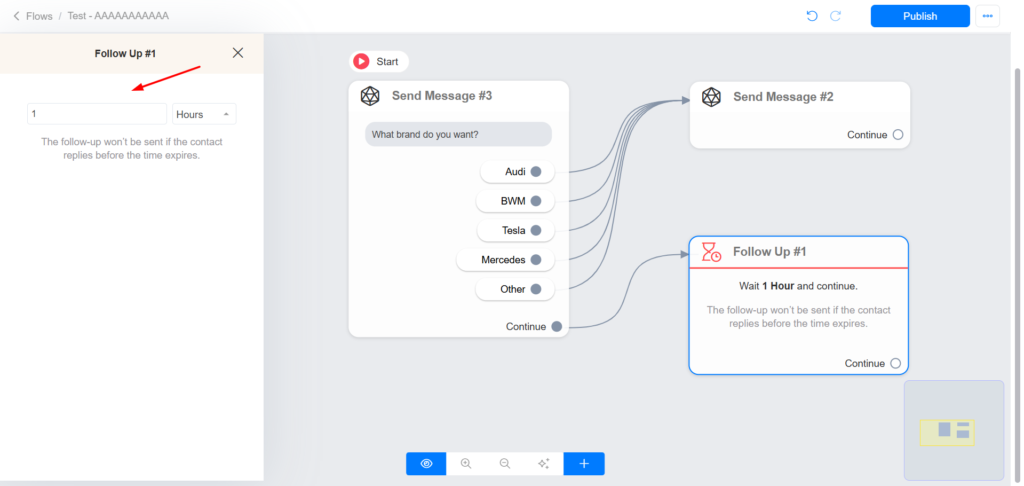
3 – Set the amount of time the bot should wait before sending the Follow Up step. The follow-up won’t be sent if the contact replies before the time expires.
Using multiple follow-ups
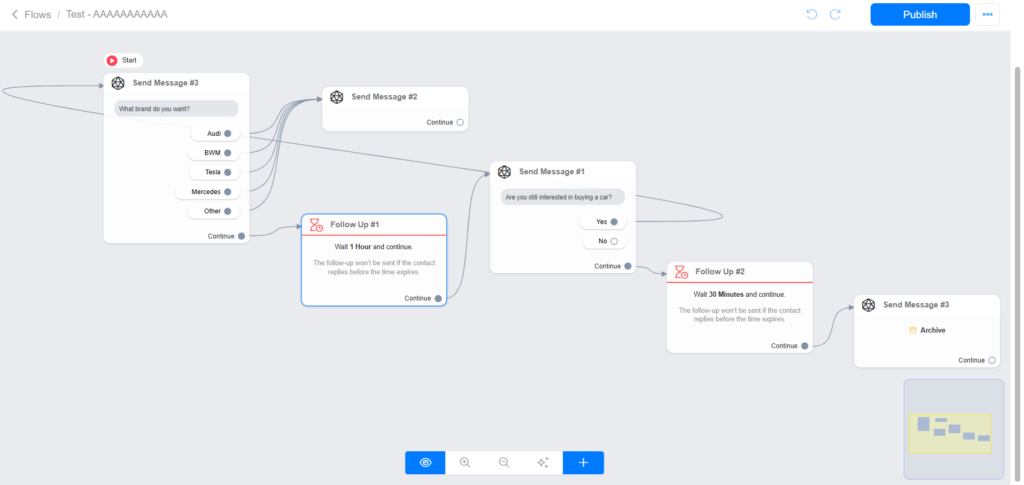
Sometimes a business may want to send multiple follow-ups if the contact doesn’t respond. It is possible to send up to 3 follow-ups in a row if the contact doesn’t respond.
In the image below, the chatbot can send 2 follow-up messages. The first follow-up is sent 1 hour after the user’s last interaction, and the second follow-up is sent 30 minutes after the first follow-up.
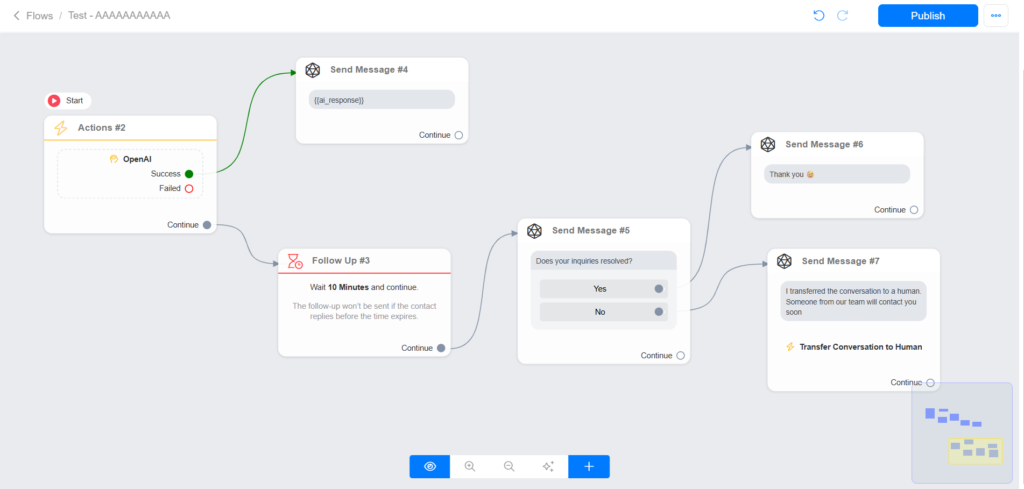
Using follow-up and an AI Agent
Important notes
1 – Don’t use the follow-up step immediately after a “Get User Data”. Use the auto-skip feature on “Get User Data”
2 – You can’t use more than 4 follow-up steps in a row. If you need more than 4 follow-ups in a row, please let us know your use case.
3 – You can’t set up a follow-up step to be sent after 30 days of the user’s last interaction.
Images are supplier reference screenshots and may show the original branding.