Caricamento / Loading
Inbound Webhooks
4 min read
Inbound Webhooks let you receive data directly from other systems to create contacts, update their information, and trigger flows—without needing middleware like Zapier or Make.
Simply configure the other system to send data to your Pengo webhook URL, choose which values to save, and select the flow to trigger.
For example, your online store can send new order details directly to Pengo, automatically update the customer’s contact fields, and start an order follow-up flow.
Other uses include:
- Adding new leads from a website form.
- Updating contact information from a CRM.
- Saving payment or appointment details and starting a follow-up flow.
Key Details
- The sending system must be able to send a webhook request containing JSON data.
- The incoming data must include an email address or phone number so Pengo can identify the contact.
- Configure at least one identifier: email or phone number. You do not need both.
- If a matching contact exists, Pengo updates that contact. Otherwise, it creates a new contact.
- You can map incoming values to contact fields, including custom fields.
- The selected flow is triggered after the mapped values are saved.
- Sample JSON helps you select fields and preview values while configuring the webhook. Loading a sample is separate from sending a live webhook request.
Before starting: Create the custom fields you want to use and the flow you want to trigger. Obtain a sample of the JSON your other system will send.
How to Set Up
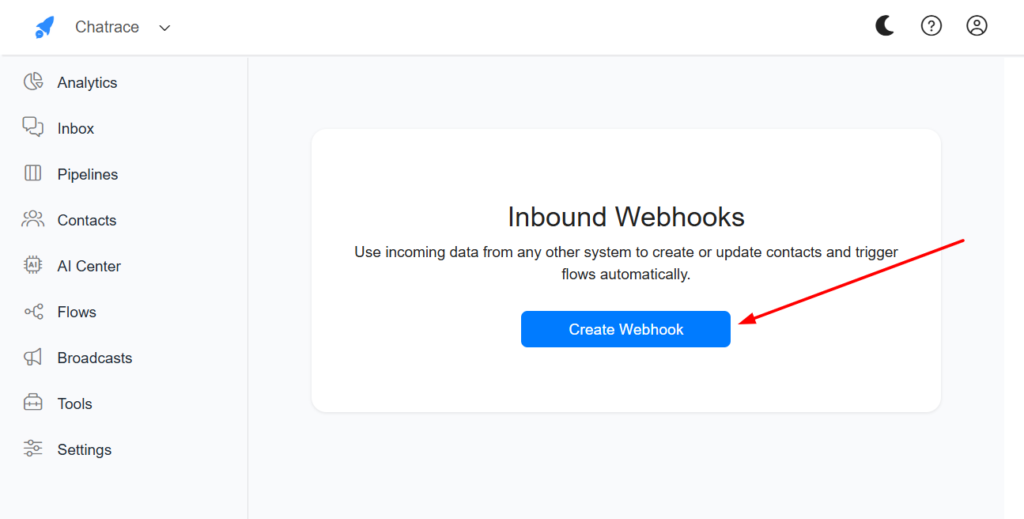
1. Create an inbound webhook
Open Inbound Webhooks (Open the corresponding section in your own Pengo account.) in Pengo and create a webhook.
Give it a name that describes its purpose, such as New Website Lead or New Order Follow-up.
2. Load sample JSON
In Sample JSON, paste an example of the data your other system will send. Click Load sample JSON.
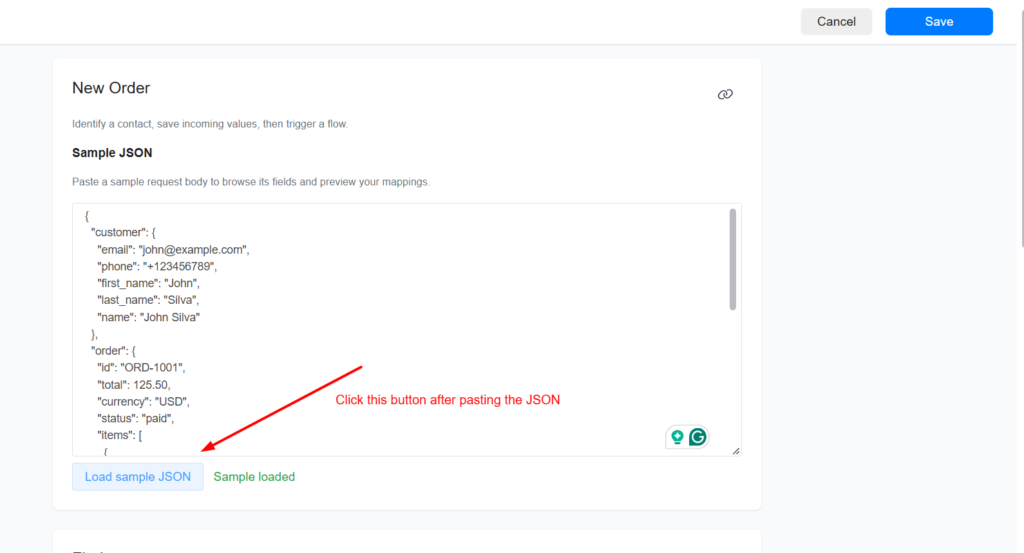
Use a sample with the same field names and structure as the actual request. This lets you browse the incoming fields and preview the values your mappings will extract.
{
  "customer": {
    "email": "john@example.com",
    "phone": "+123456789",
    "first_name": "John",
    "last_name": "Silva",
    "name": "John Silva"
  },
  "order": {
    "id": "ORD-1001",
    "total": 125.50,
    "currency": "USD",
    "status": "paid",
    "items": [
      {
        "name": "Wireless Headphones",
        "quantity": 1,
        "price": 100
      },
      {
        "name": "Phone Case",
        "quantity": 1,
        "price": 25.50
      }
    ]
  },
  "marketing": {
    "source": "facebook",
    "campaign": "october_sale"
  }
}
3. Identify the contact
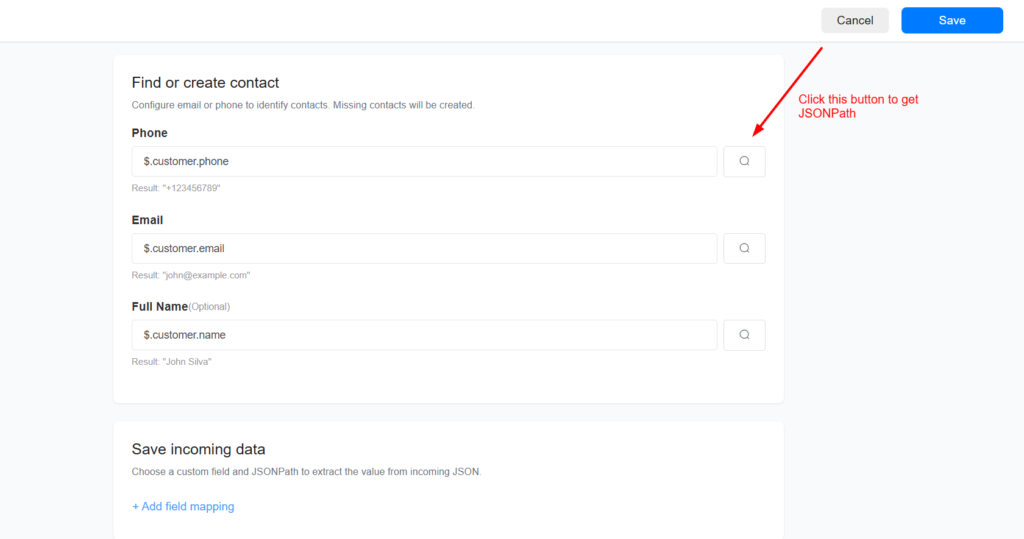
In Find or create contact, choose the incoming value that contains the contact’s email address or phone number.
Click Browse, search for the field, and select its value. Pengo fills in the JSONPath automatically. You can also enter the path manually.
4. Map incoming values to contact fields
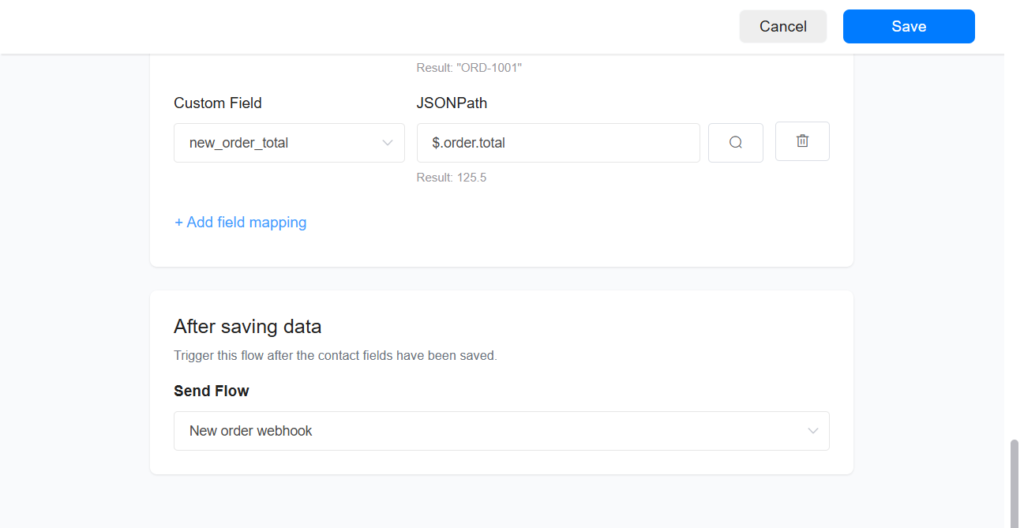
Add a field mapping for each additional value you want to save.
For each mapping:
- Select the destination custom field to save the value.
- Click Browse and select the incoming value, or enter its JSONPath.
- Check the sample value shown below the path.
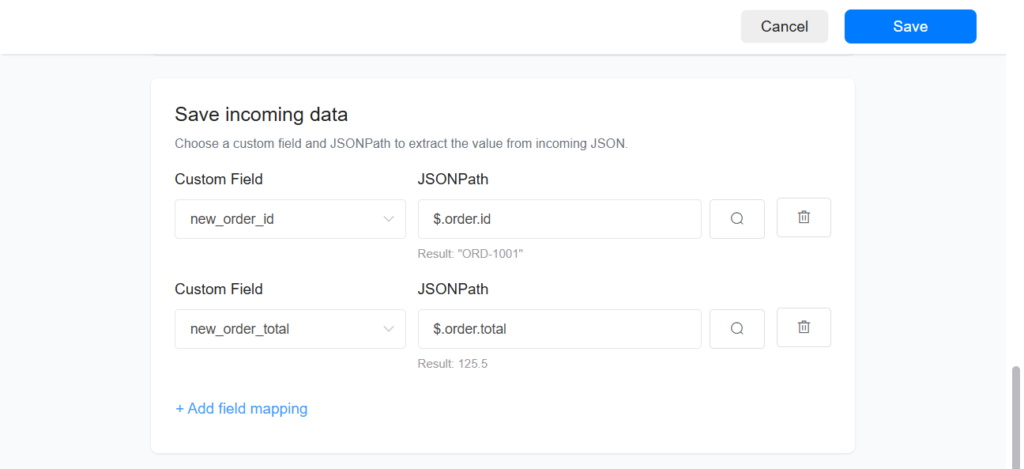
Note: Choose a field type that matches the incoming value. For example, use a numeric custom field for the order total and a text field for the order ID. For dates, choices, and other field types, use the format or options expected by the destination field.
5. Select the flow
In After saving data, select the flow to trigger.
The flow can use the values saved to the contact’s fields. For example, your order follow-up flow can include the order ID or use the order status in a condition.
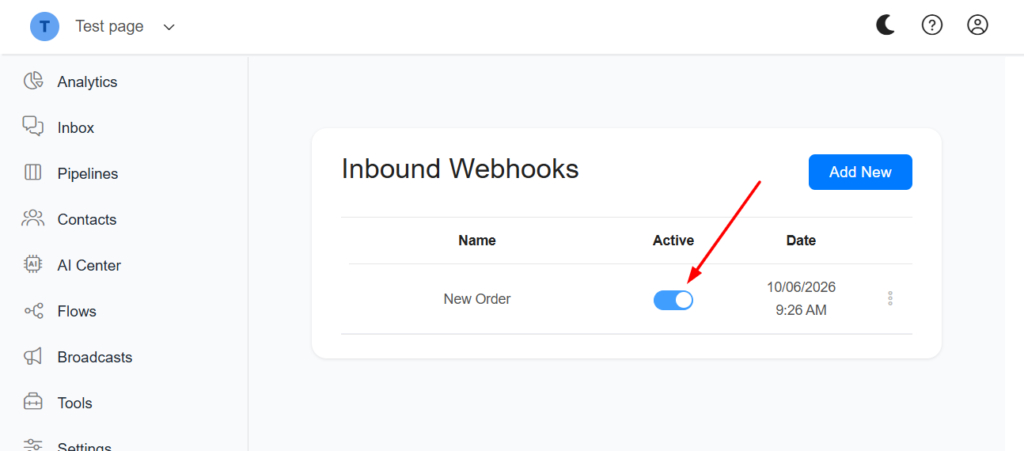
6. Activate the inbound webhook created
Frequently Asked Questions
Do I need both an email address and a phone number?
No. Configure at least one identifier: email or phone number. The incoming request must contain a valid value at the configured JSONPath.
Does the contact need to exist first?
No. Pengo finds an existing contact using the configured identifier or creates a new contact when no match exists.
Can I receive data from different systems?
Yes, as long as they can send JSON data to your webhook URL. Create separate webhooks for integrations that need different mappings or flows.
Can I select fields inside nested objects or arrays?
Yes. Use the field browser or enter a JSONPath, such as $.customer.email or $.order.items[0].name.
Can my flow use the received data?
Yes. Map the incoming values to contact fields. Pengo saves those values before triggering the selected flow, so the flow can use them.
What is the difference between inbound and outbound webhooks?
Inbound Webhooks receive data from other systems to create or update contacts and trigger flows. Outbound Webhooks notify other systems when events occur in your Pengo account.
Images are supplier reference screenshots and may show the original branding.